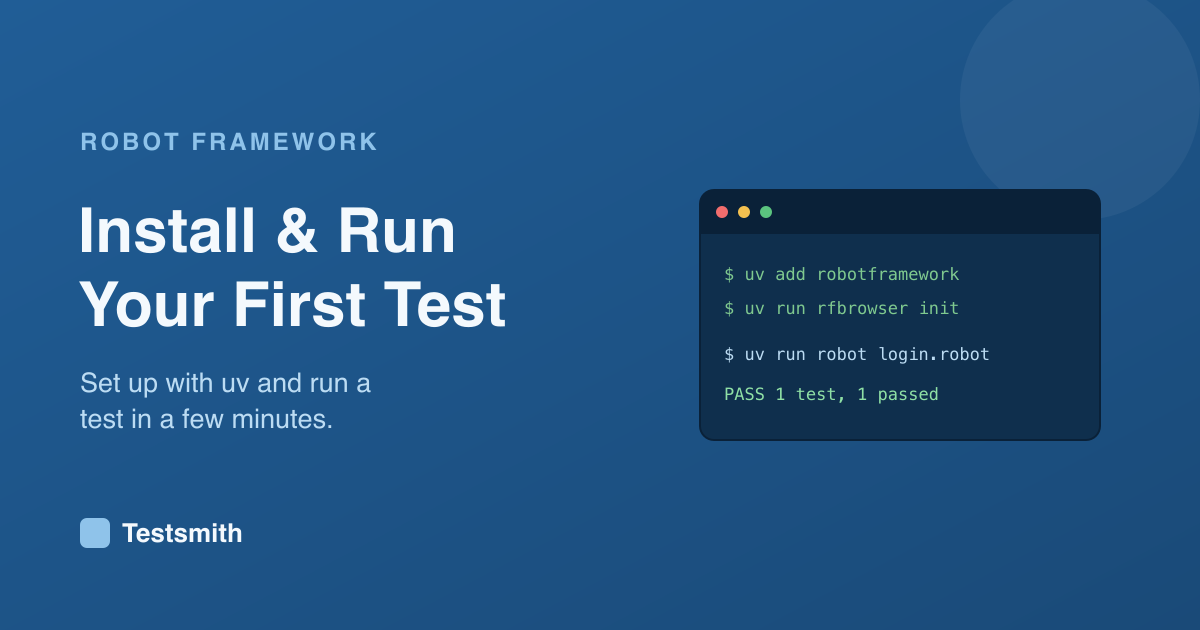
The quickest way to understand Robot Framework is to run something. This post takes you from an empty machine to a passing test in a few minutes, and explains what each step does so nothing feels like magic.
Prerequisites
Robot Framework is built on Python, and the simplest way to manage both Python and your project's packages is uv, a fast Python package and project manager. If you do not have it yet, install uv by following its instructions for your system, then check it is available:
uv --version
uv creates and manages an isolated environment for your project automatically, so you never have to set one up by hand. It can even install a suitable Python version for you if one is missing.
Create a project and install Robot Framework
Start a project. uv sets up the folder, a pyproject.toml and an isolated environment:
uv init robot-tests
cd robot-tests
Add the framework itself:
uv add robotframework
That gives you the parser, the engine and the reporting, but not the ability to drive a browser yet. For web testing, add the Browser library, which is built on Playwright, and run its one-time setup:
uv add robotframework-browser
uv run rfbrowser init
The rfbrowser init step downloads the browser binaries the library needs. It runs once. Running it through uv run makes sure it uses your project's environment.
Write your first test
Create a file called login.robot with this content:
*** Settings ***
Library    Browser

*** Test Cases ***
A Registered User Can Log In
    New Page       https://demo.example.com/login
    Fill Text      id=username    standard_user
    Fill Secret    id=password    secret
    Click          id=login
    Get Text       body    contains    Welcome
A few things to notice. The *** Settings *** section imports the library you need. The *** Test Cases *** section holds the test, whose name is the readable line "A Registered User Can Log In". Each indented line is a keyword and its arguments, separated by two or more spaces. Four spaces is the recommended separator, and it is what keeps the file readable.
Run it
From the project folder, run the test through uv so it uses your project's environment:
uv run robot login.robot
Robot Framework runs the test and prints a summary showing whether it passed or failed. It also writes three files in the current folder:
report.html, a high-level summary of the run.log.html, a detailed, step-by-step log you can expand keyword by keyword.output.xml, the machine-readable results other tools can read.
Open log.html in a browser and expand the test. You will see every keyword that ran, its arguments and how long it took. That log is where you will spend a lot of time once your tests grow, so it is worth getting familiar with it early. We cover it in understanding Robot Framework logs and reports.
What just happened
You installed a framework, added a library that knows how to drive a browser, described a test in readable keywords, and ran it. That shape, framework plus libraries plus readable test data, is the whole model of Robot Framework. Everything else you learn builds on it.
Where to go next
From here, the natural next steps are learning the syntax properly and understanding variables and keywords, which is where tests start to become reusable rather than one-off scripts. Start with Robot Framework syntax basics.
If you would rather follow a structured path from install to a full suite, our Robot Framework Certified Professional course covers it in order and prepares you for the RFCP exam.
Frequently asked questions
Do I need to install Python separately? Not necessarily. uv can install and manage a suitable Python version for you, along with your project's packages. You just need uv itself.
Why do I run rfbrowser init?
The Browser library uses Playwright, which needs browser binaries. rfbrowser init downloads them once so your tests have something to drive.
Can I use a different library instead of Browser?
Yes. For example, uv add robotframework-seleniumlibrary gives you SeleniumLibrary instead. The test structure stays the same, only the keywords change.
Next: Robot Framework syntax basics, or revisit what is Robot Framework?.